


December 2025
If your school is approaching mid-quarter report for the 2nd quarter, then these functions in FastDirect might need to be addressed. Opening up teacher input for 2nd Mid-Quarter Report will require:
- Changing input for 1st quarter report cards from ‘Allow Input’ to ‘Input Complete’ in ‘ReportCard Input Controls’
- Confirming the mid-quarter dates for 2nd quarter in ‘Grades’ then ‘Report Card Input Controls’
- Changing input for mid-quarter from ‘Not Yet’ to ‘Allow Input’ in ‘Report Card Input Controls’
- Having teachers go through the mid-quarter report card input process
- Closing the input process by changing ‘Allow Input’ to ‘Input Complete’
With the winter season upon us, this could mean school closings and changes to school days due to inclement weather. If your school closes because of snow or other unexpected reasons, then you will need to change the day in the Master School (Standard) Calendar to a non-attendance day. If the calendar is not changed, then your teachers will be asked to take attendance for the day that was cancelled. Here are the steps:
- Go to ‘Calendar’ then scroll down to the gold box below the months
- The first option in the gold box allows you to select a day and determine what type of day it is – Normal, Holiday, Other etc.
- Select the month/day/year in the drop down, then select ‘Weather off’
- Click ‘Change type of day’
- Repeat these steps if your school was closed for additional days
- Please note – if you have teachers who are using separate attendance calendars, then you will need to change those as well!
Notifying your parents of snow days, late starts or early dismissals has never been easier! To notify your staff and parents of any closings, late starts or early dismissals, use the FDbroadcast feature. These broadcasts can go directly from the school to the parents’ cell phones and email accounts, keeping everyone informed instantly!
FDbroadcast was designed to allow principals (and selected staff) the ability to message the school community in multiple methods in case of an emergency or urgent situation. The option “FDbroadcast” must be selected when sending the FDmail message. The system, by default, allows the Principal access to this feature. To give other staff members access, the Principal must edit their Teacher (Staff) form in the People section. This feature sends all users a copy of your urgent FDmail as well as a Text Notification and an Email Forward. Even if your school does not currently use the feature ‘Email Forward’, the FDbroadcast will still forward your FDmail message directly to the recipients’ email. However, in order for the text notification to work, your school will need to enable ‘SMS Text Notification’ in Settings. The last critical step is that your parents have entered in all the necessary information on their parent form. This means they will need an email address, a cell phone number and a cell phone provider. A text notification and email forward are only sent if the appropriate fields are completed on the staff and parent forms. If a parent has opted out of receiving SMS Text Notifications or has opted out of receiving Staff Email Forward, an FDbroadcast will still be sent to that parent in all methods regardless of the parents’ preferences. This is why an FDbroadcast is ideal for urgent or emergency situations, as it overrides the parents’ preferences for communication.
Here are some helpful FAQ links to help explain these features and how to get started:
Click here for the FAQ explaining FDbroadcast
Click here for the FAQ on how to send an FDbroadcast
Click here for the FDbroadcast video tutorial
The login screen is another way to communicate school closings and announcements from the school. Here are the steps for posting an announcement on the login screen:
- Go to ‘Settings’ and click on Login Page Design in the left hand navigation menu
- In the middle box labeled ‘Message of the Day’, type in your message or announcement
- Click ‘Save Changes’
This announcement will post on the login screen above the login box. To add addition detail, color, font changes, etc, you will want to use an HTML editing software, such as KompoZer, which can be downloaded for free.
If you are a trimester school, December may be too soon for you to open up mid-trimester report card input.
With the winter season upon us, this could mean school closings and changes to school days due to inclement weather. If your school closes because of snow or other unexpected reasons, then you will need to change the day in the Master School (Standard) Calendar to a non-attendance day. If the calendar is not changed, then your teachers will be asked to take attendance for the day that was cancelled. Here are the steps:
- Go to ‘Calendar’ then scroll down to the gold box below the months
- The first option in the gold box allows you to select a day and determine what type of day it is – Normal, Holiday, Other etc.
- Select the month/day/year in the drop down, then select ‘Weather off’
- Click ‘Change type of day’
- Repeat these steps if your school was closed for additional days
- Please note – if you have teachers who are using separate attendance calendars, then you will need to change those as well!
Notifying your parents of snow days, late starts or early dismissals has never been easier! To notify your staff and parents of any closings, late starts or early dismissals, use the FDbroadcast feature. These broadcasts can go directly from the school to the parents’ cell phones and email accounts, keeping everyone informed instantly!
FDbroadcast was designed to allow principals (and selected staff) the ability to message the school community in multiple methods in case of an emergency or urgent situation. The option “FDbroadcast” must be selected when sending the FDmail message. The system, by default, allows the Principal access to this feature. To give other staff members access, the Principal must edit their Teacher (Staff) form in the People section. This feature sends all users a copy of your urgent FDmail as well as a Text Notification and an Email Forward. Even if your school does not currently use the feature ‘Email Forward’, the FDbroadcast will still forward your FDmail message directly to the recipients’ email. However, in order for the text notification to work, your school will need to enable ‘SMS Text Notification’ in Settings. The last critical step is that your parents have entered in all the necessary information on their parent form. This means they will need an email address, a cell phone number and a cell phone provider. A text notification and email forward are only sent if the appropriate fields are completed on the staff and parent forms. If a parent has opted out of receiving SMS Text Notifications or has opted out of receiving Staff Email Forward, an FDbroadcast will still be sent to that parent in all methods regardless of the parents’ preferences. This is why an FDbroadcast is ideal for urgent or emergency situations, as it overrides the parents’ preferences for communication.
Here are some helpful FAQ links to help explain these features and how to get started:
Click here for the FAQ explaining FDbroadcast
Click here for the FAQ on how to send an FDbroadcast
Click here for the FDbroadcast video tutorial
The login screen is another way to communicate school closings and announcements from the school. Here are the steps for posting an announcement on the login screen:
- Go to ‘Settings’ and click on Login Page Design in the left hand navigation menu
- In the middle box labeled ‘Message of the Day’, type in your message or announcement
- Click ‘Save Changes’
This announcement will post on the login screen above the login box. To add addition detail, color, font changes, etc, you will want to use an HTML editing software, such as KompoZer, which can be downloaded for free.
In order for your staff and parents to utilize the ‘Forgot my ScreenName or Password?‘ feature on the login page, they will need to have an email address in their account information. Adding their email address will also be needed for Email Forwarding.
Here are the steps for an admin to enter in an email address to a staff account:
- Click on People, then Staff
- Click on the name of a staff person
- In their information, look for the field labeled ‘Email:’
- Enter in an email address in the text box
- Click ‘Save Changes’
Here are the steps for an admin to enter in an email address in a parent account:
- Click on People, then Parents
- In the ‘Active Parents’ drop down, select a parent
- In the right hand column for P1 information, look for the field labeled ‘Email’
- Enter in an email address in the text field
- Repeat steps 3 and 4 for the Parent 2 information
- Click ‘Save Changes’
Email Forwarding is an optional feature that allows staff members to forward their FDmail messages to the recipients’ preferred email. Please be aware that your school policy concerning email communication should apply. Email is not a secured communication vehicle and others may in certain circumstances be able to view its contents. Conversely, FastDirect Communications and FDmail messages which are not forwarded to email will remain secure and archived for your school administration. Email Forwarding has two settings that allow the school principal to control how it works. The first setting determines whether the system defaults to sending an email forward or not. It effects the options seen when a staff person is sending an FDmail message. In other words, it can default to select either “Email Forward” or “Do Not Email Forward.” In either case, the sender can elect to change the setting as needed. The second setting allows the principal to determine whether all parents start out opted in to the feature (able to receive email forwards) or not. In other words, it effects the Parent Data Form and whether they are initially opted-in or out. In either case, the parent can change the setting to their preference by changing the setting on their Parent Data Form or by contacting the school administration, depending on your ‘Allow parents to change data’ setting.
Click here for the FAQ explaining Staff Email Forwarding
Click here for the FAQ on how to set up Staff Email Forwarding
Click here for the FAQ on how to help your parents receive Staff Email Forwarding
Note – If your school is currently using Email Forwarding and you are interested in resetting the opt in/out setting for your parents, please contact HelpDesk and we can walk you through the steps.
The students’ names in your GradeBook rosters are clickable links. Click on a student’s name to see an isolated report of that specific student’s grades for that course. When working in your GradeBook, it might be helpful to view a student’s grades in an isolated report. This report will give you a breakdown of the grades that student has earned for a specific course. To get this report, you will open up a GradeBook for one of your courses. Once the roster appears, you can click on any name in the roster. Here are some of the advantages to this report:
- The report will be in a new internet window which can be printed
- The report will not contain grades for any other student, which makes it an ideal screen to show parents during conferences
- The button to the left of the student’s name allows you to toggle to the next student in the class
FastDirect offers parents three different formats to view or print parent/student directory information (buzz books). The parent/student directory (buzz book) is a list of the parents and students at the school and specific contact information. The school has the ability to show or hide the directory for parents. If your school is allowing parents to view the directory, then parents can choose to have their home address, home phone number, email address, and cell phone number published to the directory or they can choose to have this information hidden/removed from the directory. Please note – The system will default to having this information published. If would like to have your information withheld from the directories, here are the steps:
- Log into your parent account
- On the App, click ‘Display Parent Data’ then scroll down to the heading ‘Publish to Directory’ for either the P1 or P2 account
- On a internet browser, click ‘View/Edit Parent Information’ at the top of your Home page, then scroll down to the heading ‘Publish to Directory’ for either the P1 or P2 account
- Uncheckmark any or all of the directory fields
- Click ‘Save Changes’
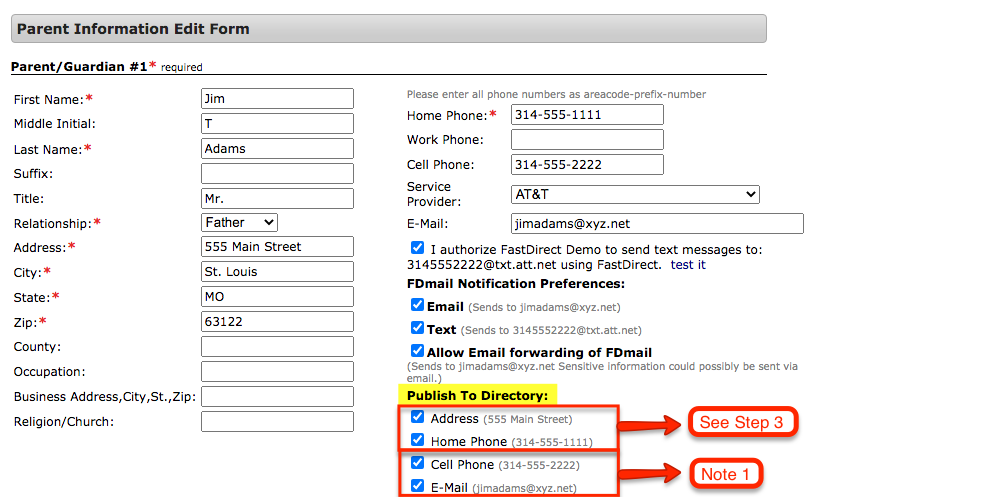
Note 1 – Cell Phone number and Email address Included in Directory:
If your school has allowed for Cell Phone Numbers and Email Addresses to be included in the directory, then parents can also choose to have those hidden/removed as well by following the same steps as those above.
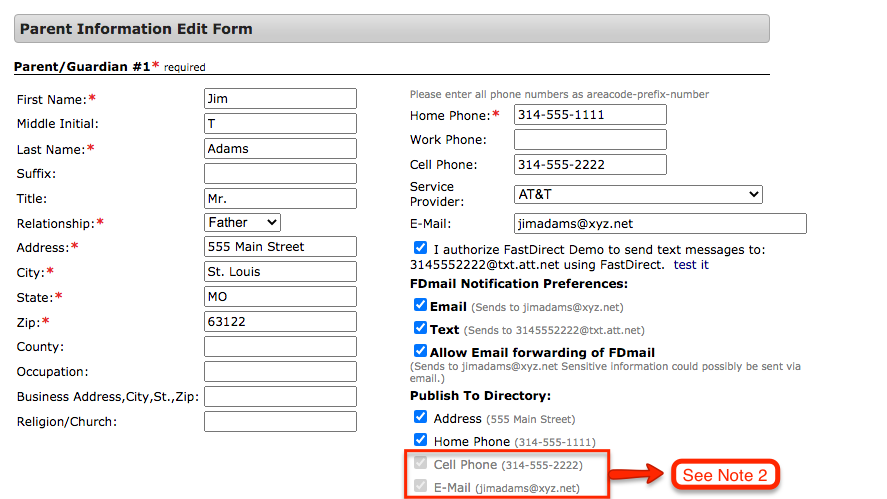
Note 2 – Cell Phone number and Email address NOT Included in Directory:
If your school has chosen to not allow for Cell Phone Numbers and Email Addresses to be included in the directory, then those options will be grayed out. Regardless of if the Cell Phone number and Email address are check marked, as long as they are grayed out then those fields will not be published in the directory. No action is required by the parents.
Viewing
To view the directory, parents will first log into their parent account. For parents using the App, they can click on the ‘Directory’ menu option. For parents using a browser, at the bottom of their Home page will be a box with the heading ‘Directory’ and three viewing options below it.
- How do I notify parents that they have a negative balance in their financial account?
- Can I transfer/reassign a course (with all students and their grades) to a new teacher?
- Why can’t I see a message that I sent?
Helpful FAQs from December 2024:
- As a parent, how can I view my child’s report card or gradebook
- How do I edit a Separate Attendance Calendar?
- Where can I find new family/student in tuition?
Helpful FAQs from December 2023:
Watch this video tutorial to find out how to set up Email Forwarding for staff:
- Click here to watch the video tutorial as an MP4!
- Click here to watch the video tutorial in YouTube!
Free Training and Tech Support
New to FastDirect Communications? Our newsletter is just one small way we help our schools. Our free training and tech support is a large part of what we offer. Read more!