


March 2026

If your school is approaching the 3rd quarter report, then these functions in FastDirect might need to be addressed.

Opening up teacher input for 3rd Quarter Report Cards will require:

  • Confirming the 3rd quarter dates in ‘Grades’ then ‘Report Card Input Controls’
  • Changing input for 3rd quarter Report Cards from ‘Not Yet’ to ‘Allow Input’ in ‘Report Card Input Controls’
  • Having teachers go through the 3rd quarter report card input process
  • Closing the input process by changing ‘allow input’ to ‘input complete’

Registration is an important part of the school year and FastDirect can help make the process easier.  In FastDirect, you can track new student applications, re-registrations of returning students, as well as the charging and depositing of registration fees. Here is some of the information that is tracked in the Registration report:

  • The number of students for each grade level
  • The number of students returning in each grade level
  • The number of new student applications in each grade level
  • An estimated number of spots available in each grade level
  • A breakdown of each existing family and their re-registration status

Here are some other features involved in registration through FastDirect:

  • The ability to allow your parents to re-register their child online
  • Time stamps for when parents re-registered their child
  • The finance account for Registration 2026-2027
  • A report showing all families and if they have been charged their registration fees
  • A report showing all families and if they have paid their registration fees

Click here to watch the Registration video tutorial in MP4 format

Click here to watch the Registration video tutorial in Youtube

Registering students for next year often means forms and paperwork.  With the file upload function, you can add these forms to the Links page, send them as attachments or create links to them on the login screen.  Making these forms available online means you won’t be spending your time making copies and mailing them out. Additionally, by allowing your parents to upload files, you can have a paperless process!  After you have uploaded the forms and made them available online, your parents can fill the forms out and send them back to you through our secure FDmail eMessaging. Here is how to turn on file upload for your parents and ways to help get your parents started:

  1. Go to Settings
  2. Click on FDmail in the left hand navigation menu
  3. Check mark the option to Allow Parent File Upload
  4. Click ‘Save Changes’

To allow students, repeat these steps and check mark the option for Allow Student File Upload.  To learn more about file upload, click on your FAQ Icon (the blue question mark), click on the “Look in: All categories” drop-down menu, select File Upload/File Attachment and click “View FAQ”. To help teach you parents and/or students how to use the file upload tool, you can point them to the FAQ section under the heading of ‘File Upload/File Attachment’. HelpDesk would like to help you get your Registration processes set up in FastDirect. Please send an FDmail message or give HelpDesk a call when you are ready to get started.

If your school is on trimesters, March may be too soon to be preparing for mid-trimester reports.

Registration is an important part of the school year and FastDirect can help make the process easier.  In FastDirect, you can track new student applications, re-registrations of returning students, as well as the charging and depositing of registration fees. Here is some of the information that is tracked in the Registration report:

  • The number of students for each grade level
  • The number of students returning in each grade level
  • The number of new student applications in each grade level
  • An estimated number of spots available in each grade level
  • A breakdown of each existing family and their re-registration status

Here are some other features involved in registration through FastDirect:

  • The ability to allow your parents to re-register their child online
  • Time stamps for when parents re-registered their child
  • The finance account for Registration 2026-2027
  • A report showing all families and if they have been charged their registration fees
  • A report showing all families and if they have paid their registration fees

Click here to watch the Registration video tutorial in MP4 format

Click here to watch the Registration video tutorial in Youtube

Registering students for next year often means forms and paperwork.  With the file upload function, you can add these forms to the Links page, send them as attachments or create links to them on the login screen.  Making these forms available online means you won’t be spending your time making copies and mailing them out. Additionally, by allowing your parents to upload files, you can have a paperless process!  After you have uploaded the forms and made them available online, your parents can fill the forms out and send them back to you through our secure FDmail eMessaging. Here is how to turn on file upload for your parents and ways to help get your parents started:

  1. Go to Settings
  2. Click on FDmail in the left hand navigation menu
  3. Check mark the option to Allow Parent File Upload
  4. Click ‘Save Changes’

To allow students, repeat these steps and check mark the option for Allow Student File Upload.  To learn more about file upload, click on your FAQ Icon (the blue question mark), click on the “Look in: All categories” drop-down menu, select File Upload/File Attachment and click “View FAQ”. To help teach you parents and/or students how to use the file upload tool, you can point them to the FAQ section under the heading of ‘File Upload/File Attachment’. HelpDesk would like to help you get your Registration processes set up in FastDirect. Please send an FDmail message or give HelpDesk a call when you are ready to get started.

If your school uses FDpay and allows for ACH payments, you will need to complete a new merchant processing agreement. Effective September 20, 2024, Pace Payments – the processor under your merchant processing agreement – was acquired by Payroc. As part of this transition, Payroc is migrating schools to their current processing platform.

ACTION SUMMARY

What you need to do
Complete the Payroc merchant application when contacted by Payroc.

What you do NOT need to do yet
Do NOT ask families to update their ACH payment methods yet.

What FastDirect will handle
FastDirect will notify families and provide instructions after the payment system update is complete.


What to Expect

Payroc will contact schools directly if a new merchant application is required. If your school recently completed FDpay onboarding, you may not receive this request.

If contacted, Payroc will send an email requesting completion of a short online merchant application through their secure onboarding system. This process establishes your updated merchant account and ensures continued support for online ACH and credit card payments through FastDirect.

The email will have the subject line “Your Payroc Merchant Processing Agreement” and will look similar to the screenshot shown below.
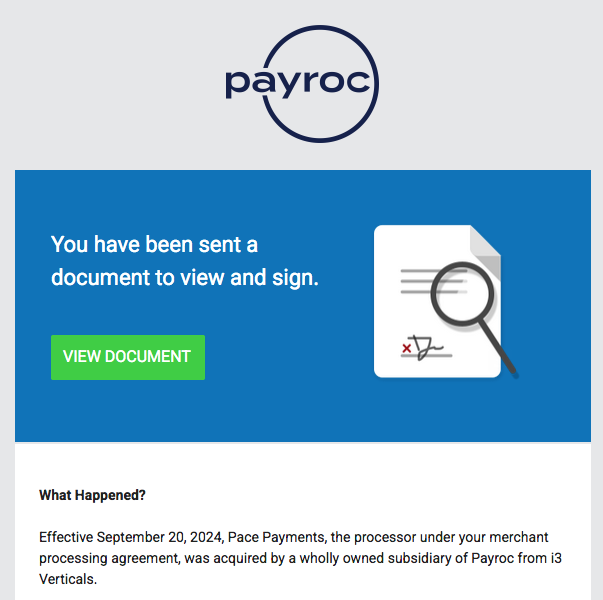
Screenshot of email;


Important Note About ACH Payments – No Action Needed Yet

Because this update involves a new payment gateway, existing ACH payment methods cannot be transferred to the new system.

No action is required from schools or families at this time.

After FastDirect releases the update to the payment system, families who currently use ACH will be asked to re-enter their bank account information.

Because ACH payment methods cannot be transferred, any existing ACH recurring or scheduled payments will also need to be set up again after the update.

FastDirect will notify affected families and provide clear instructions when that step is needed. Schools do not need to communicate with families about this yet and will not need to manually update payment schedules for families.


What You Need To Do

When contacted by Payroc, please complete the new merchant application and electronic signature as soon as possible. The process typically takes only a few minutes to complete.

Once your new merchant account is approved, FastDirect will complete the technical update on our side and notify you before any changes affecting families occur.


Questions

If you have questions about the merchant application, Payroc’s team will be available to assist you during the process. You can reach them at support.pace@payroc.com.

You are also welcome to contact FastDirect Support at any time.

There are many reasons to keep a student in an original course if that student has transferred to a different course. If a student needs to be kept in the gradebook but is no longer participating in that course, you can hide/exclude their name to help reduce confusion. When a student is added to a new course, while still being left in the original course, the advantage is that grade book grades will not be lost. The disadvantage is that there will be two courses listed on the student’s report card. For some situations, this may be an advantage as it accurately reflects that the student was in one course for a period of time and now is in a new course.

Here are some examples of why a student would be in two similar courses at the same time:

  1. Electives that change for each grading period
  2. A student is moved to a more or less challenging course (for example, from Math to Algebra)
  3. A student switches grade levels some time during the year

Here are the steps to ‘exclude’ a student’s name from a grade book roster:

  1. Go to ‘Grades’, select a course from the ‘select curriculum’ drop down, Click ‘GradeBook Input’.
  2. In the top right hand corner of your GradeBook, click on ‘Preferences’
  3. In the ‘Preferences’ window, click on the tab for ‘Exclude Student’
  4. In the drop down, select the name of the student that needs to be hidden and click ‘Exclude’
  5. To reinstate the student, just repeat these steps but use the ‘Reinstate’ option instead

Note for administrators: This function is only possible if you are signed in as the teacher (using the teacher’s Screen Name and Password).

Don’t want to log in to read your FDmail messages? With Email Forwarding, you can receive all FDmail messages directly to your preferred email!

Please be aware that your school policy concerning email communication should apply. Email is not a secured communication vehicle and others may in certain circumstances be able to view its contents. Conversely, FastDirect Communications and FDmail messages which are not forwarded to email will remain secure and archived for your school administration.

FastDirect created a Email Forward Letter that will guide you through the step-by-step procedure of allowing all FDmail messages sent from the school to be forwarded to your personal email.

Parent letter explaining how to set up Email Forwarding: Click Here to Download Letter

If this is not an option at your school, contact a school administrator to let them know this is something you are interested in receiving.

Watch this video tutorial to find out more about the admin controls in the parent information form.

Free Training and Tech Support

New to FastDirect Communications? Our newsletter is just one small way we help our schools. Our free training and tech support is a large part of what we offer. Read more!